

Phaten Cloud Login/Register
A316_V71_GAME_V1 Development Board User Guide
This document introduces the main features of the A316_V71_GAME_V1 development board and the usage of its buttons.
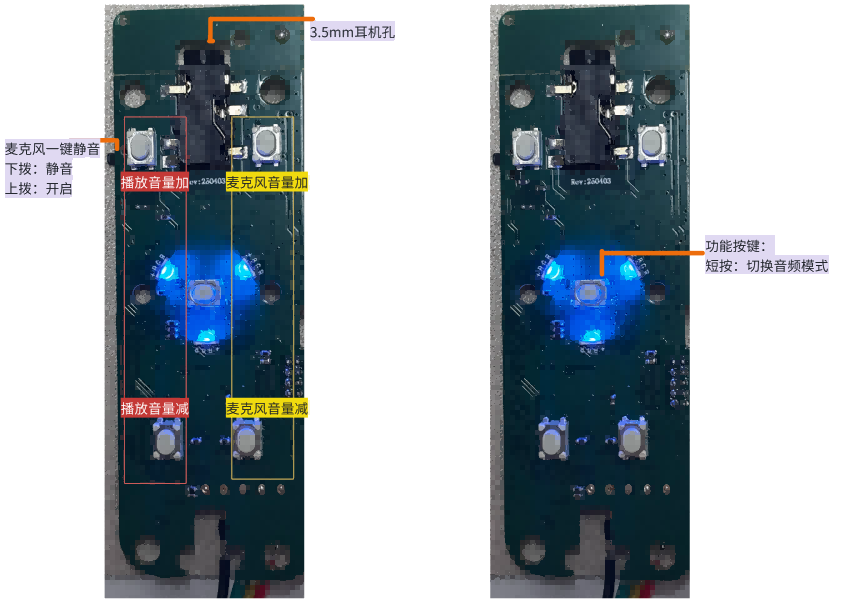
3.5mm Headphone Jack
Located at the top of the development board, supports standard 3.5mm headphones. 7.1 channel mode. For first-time use, you may need to refer to Set PC audio output to 7.1 channels
Button Functions
👉🏻📹Click to view video instructions👈🏻
- Function Button
- Short press: Switch audio mode
Audio Mode Description
Short press to switch modes:
- No sound effect: Light off
- AI 7.1 FPS: Red light steady on
- AI True 7.1 FPS: Blue light steady on
- AI True 7.1 3A: Blue light blinking
- Microphone One-key Mute
- Toggle down: Mute
- Toggle up: Unmute
- Headphone (Playback) Volume Up
- Headphone (Playback) Volume Down
- Microphone Volume Up
- Microphone Volume Down
EQ Tuning Guide
Note
Switching modes currently re-identifies the device, so you need to reconnect the device on the webpage every time you switch modes. Mass production version will not drop USB connection. Use with local EQ tuning webpage or Web Version __ (Mac computers and mobile phones are currently not supported) __
👉🏻📹Click to view video instructions👈🏻
Usage Method
-
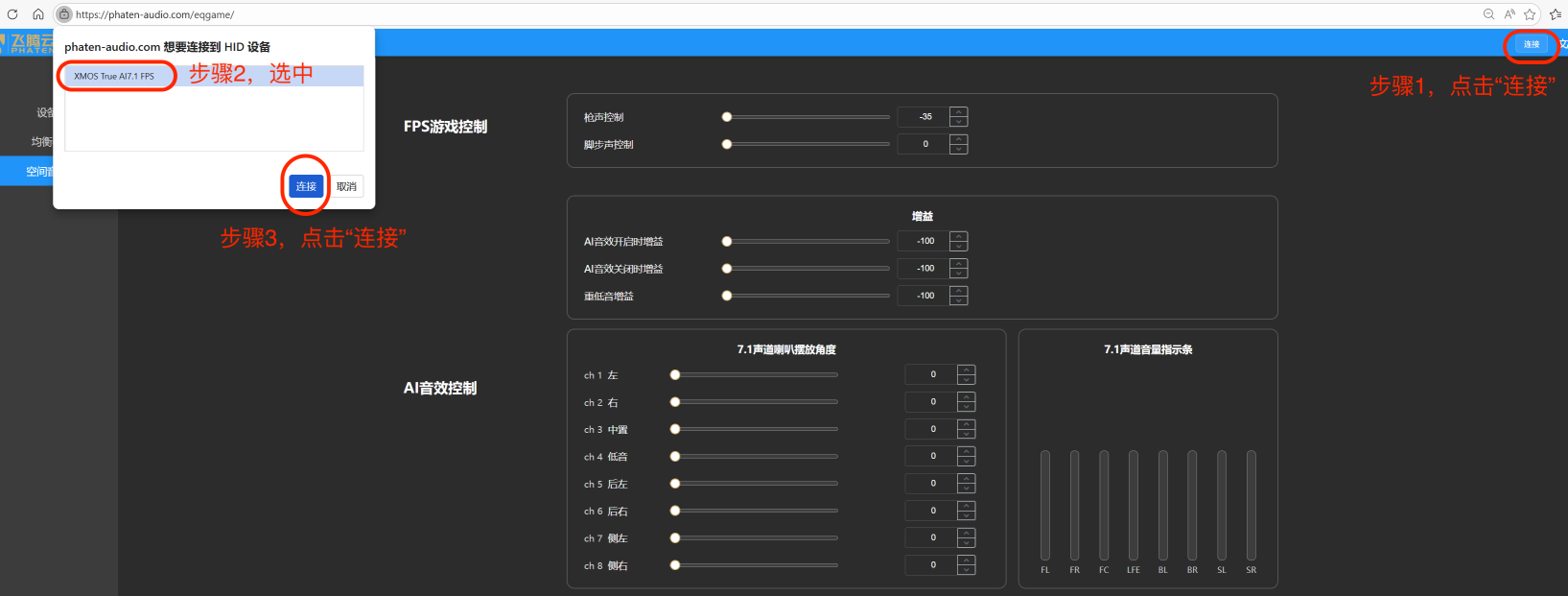
Open Web Version, plug in the device, and connect the development board in the upper right corner of the webpage. 👉🏻📹Click to view video instructions👈🏻
-
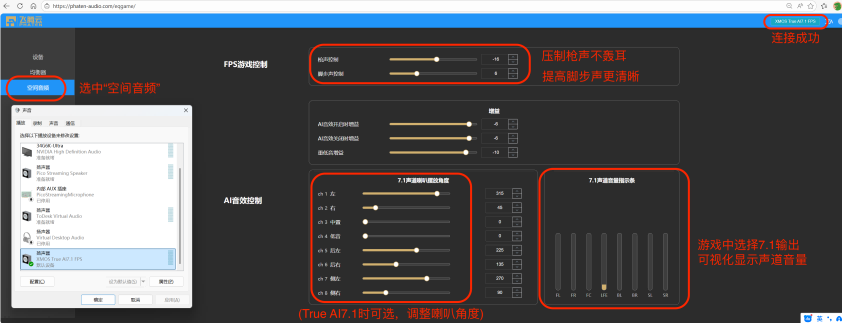
After connecting the device, select Spatial Audio in the left menu bar of the webpage.
-
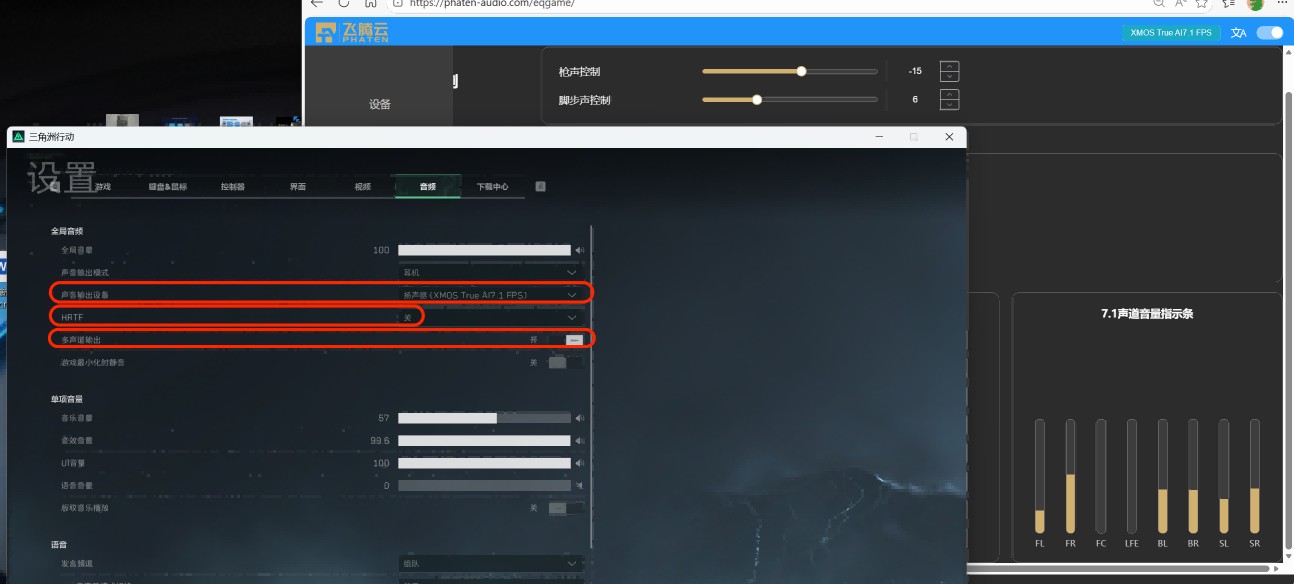
In-game settings. 👉🏻📹Click to view video instructions👈🏻
DFU Upgrade Tool
Use localized upgrade method. Go to download page
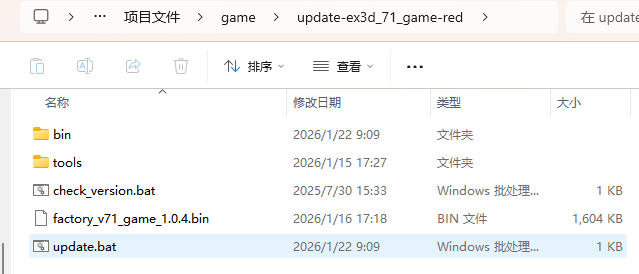
Upgrade Process:
-
Update firmware: Put the new update firmware into the bin directory.
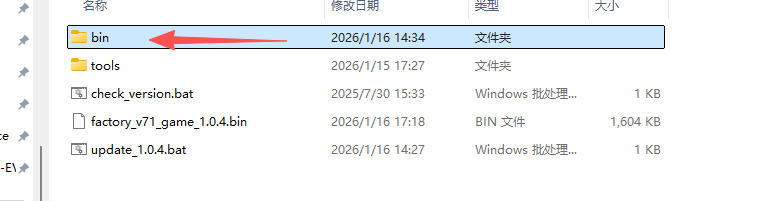
-
Update the
updatebat file content: Ensure the update firmware name matches, keep file content. Switch device mode to Red Light Steady On (short press), then run the bat file.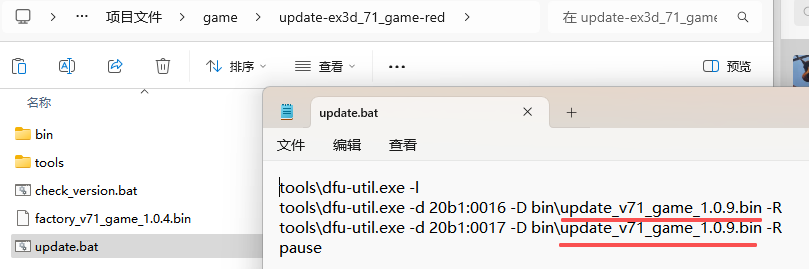
-
Normal upgrade will show progress bar and prompts. Replug the device after upgrade is complete.
Note
Different version upgrades require changing firmware and modifying bat file. Modify bat script content.
Troubleshooting
- AI True 7.1 3A mode: Blue light blinking (or AI True 7.1 FPS mode: Blue light steady on) No sound on Win11 computer:
Ensure the device is recognized when plugged into the computer. Check Device System Properties - Advanced. Device must be playing at 16bit (Reason might be device caching from using other similar products previously, please manually select 16bit playback).
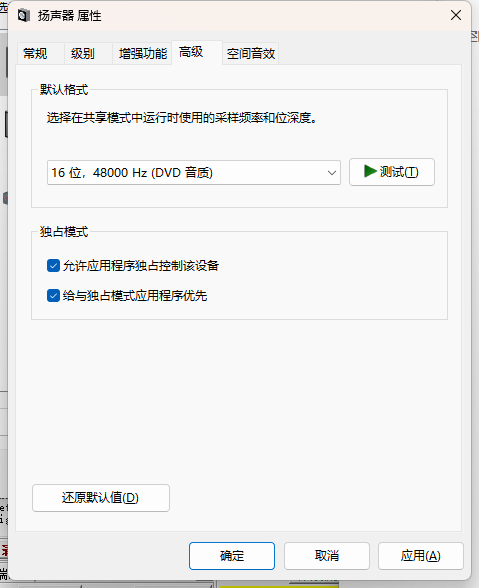
- First time using AI True 7.1 FPS mode: Blue light steady on, only 2 channels
Enter computer Sound Settings. Configure Speakers: Right click Speaker, click [Configure Speakers], select required channels. Please choose according to actual audio environment needs. Refer to Set PC audio output to 7.1 channels
Audio Testing Tools
| Tool Name | Tool Download |
|---|---|
| VLC Audio Testing Tool | Official Download Direct Download vlc-3.0.21-win64 |